Installing Scanz is very easy. We support both Windows and Mac environments.
Login here using your email and password.
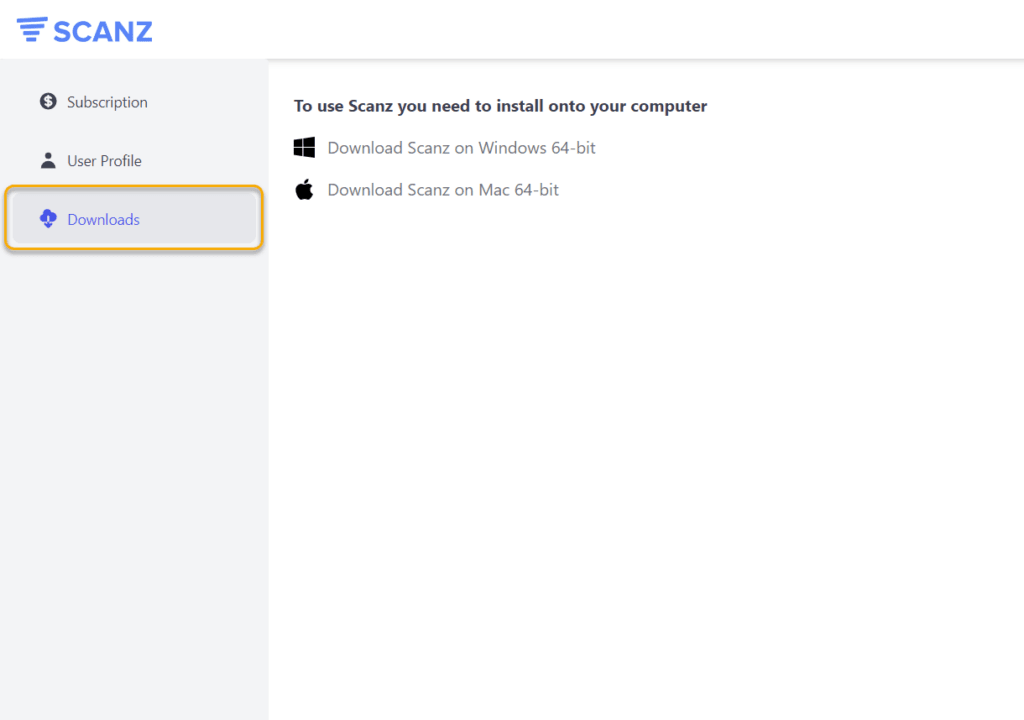
Click “Downloads” on the left-side menu to download Scanz for either Windows or Mac.
(For extra help, watch the how-to videos for Windows or Mac)
Once the installation is completed, you will see the Scanz shortcut icon on your desktop (as shown below).

Double-click on the shortcut, and the login screen will appear.
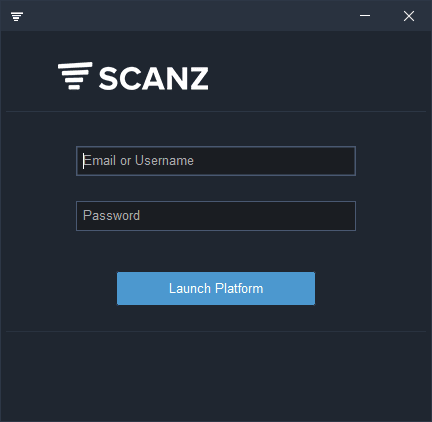
Login to the platform using your email and password.
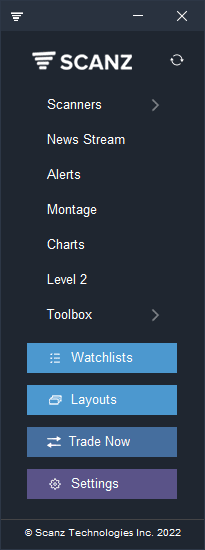
The Launchpad menu will appear. You can access all of the tools from the Launchpad.
You’re now ready to go!
Check out our getting started tutorial to learn how to use Scanz.
If you have any questions or issues launching Scanz, contact our support team. We will get right back to you with some help.